GET STARTED · KEEP LEARNING
Your teaching & study guide
Every student workflow, plus creating classes, connecting students and using shared progress to plan your support.
Screenshots show example courses and dates; your subjects, access and progress may differ. Select any screenshot to view it full size.
Go to my teaching workspace →1. Set up your study space
Choose the courses you actually study so your notes, practice and timetable match your syllabus.
- Sign up and complete email verification if prompted. Choose Student and confirm that you are 13 or older.
- Choose IGCSE or AS & A Level, your year and your subjects. Check the syllabus code as well as the subject name.
- Choose Foundation or Higher for Mathematics A. The IGCSE sciences are untiered. For IAL, choose IAS or full IAL, select your exam units and set a sitting for each. Shared applied maths units are assigned to one qualification.
- Use Profile to change these choices or switch between light, dark and system appearance. Home resumes recent notes and shows today’s revision; Study holds your units; Create makes resources; Library holds saved resources.
The exam countdown refers to a series, not your individual paper dates. Confirm those dates with your school.
2. Read and use your notes
Study → subject → unit is your starting point. Read a small section, then try recalling it without looking.
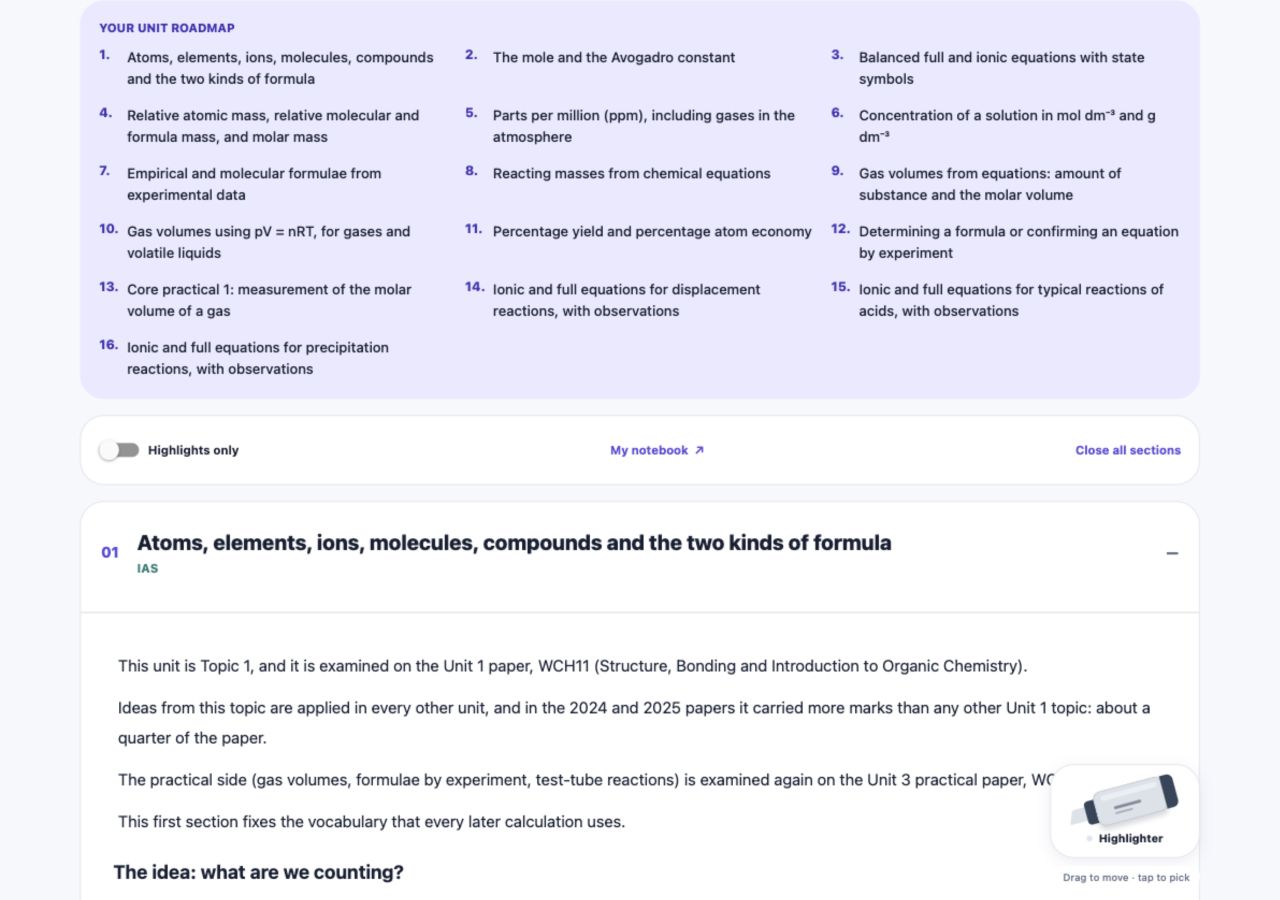
- Open Study, choose your subject and unit, then open its notes. Check the course level shown on the section.
- Use the contents to jump to a heading. Open a section card, or use Open all sections. Higher-level sections are labelled so you can check what belongs to your course.
- Read explanations and worked examples. Open diagrams for a closer look; on narrow screens, scroll wide tables sideways.
- Attempt embedded questions on paper before selecting Reveal answers. Explain the method in your own words, then use the confidence buttons below the section.
- Return from Home to resume your recent note and section.
3. Highlight and revisit important passages
Highlight a few useful passages rather than colouring the whole page.
- Tap the floating Highlighter and choose a colour. Tap a supported passage to highlight it; you do not need to drag-select individual words.
- Use yellow for a Key idea, green for a Definition or formula, pink for an Exam tip and blue for something to Revisit.
- Choose another colour and tap a passage to recolour it. Choose the eraser and tap an existing highlight to remove it. Select Done to put the tool down before reading normally.
- Use Highlights only to focus on saved passages, or My notebook in the reader / My highlighted notes on Home to revisit your collection. Open the source section when you need the surrounding explanation.
- Wait for saving to finish. If a save fails, check your connection and retry rather than assuming the mark was stored.
Try explaining a highlighted idea from memory first, then check the passage. Highlights remain private when you connect to a teacher.
4. Self-assess and think about how you learn
Metacognition means noticing what you know, checking the evidence and choosing what to do next.
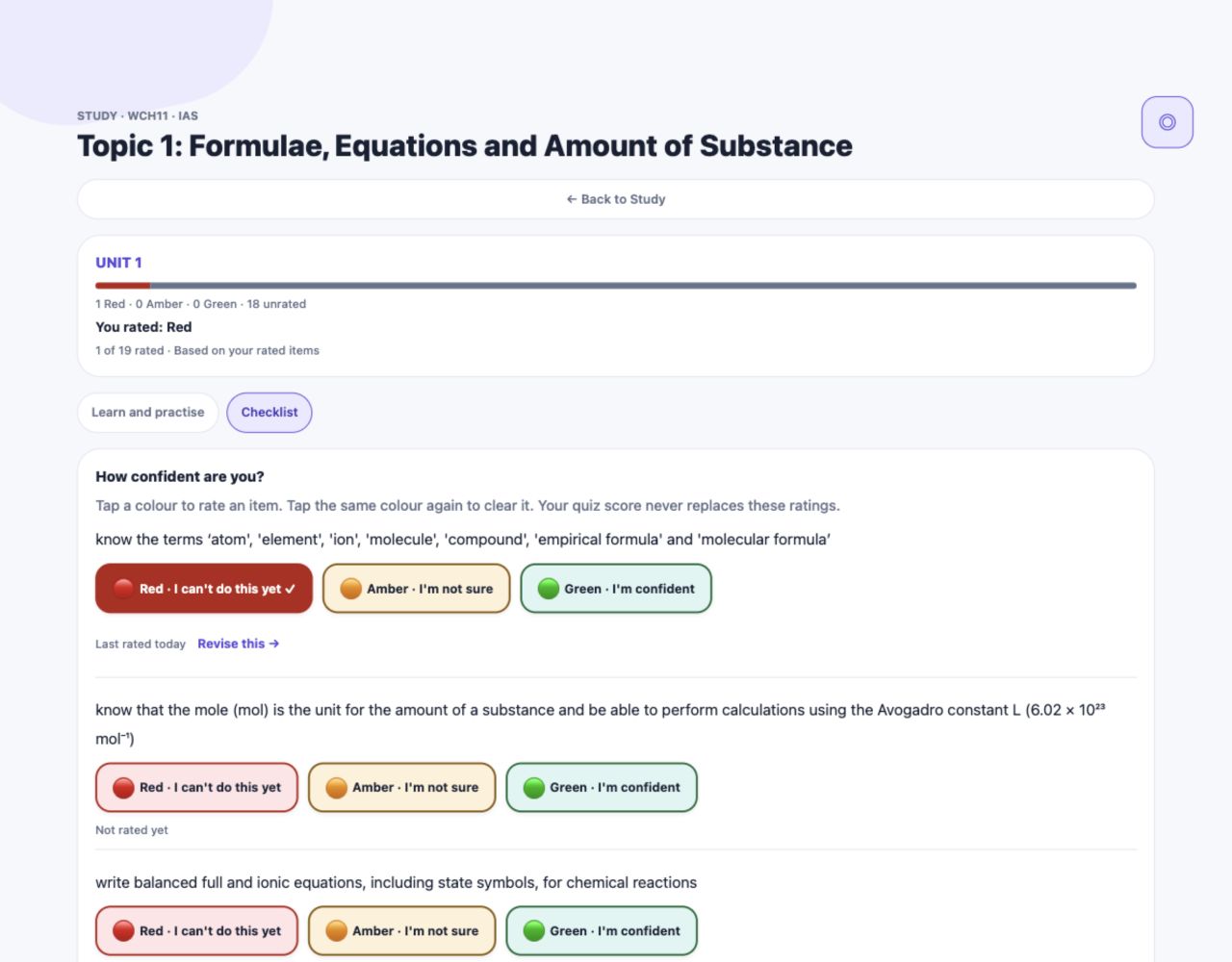
- Before studying, ask: “What can I already explain or do without help?” Choose one clear goal for this session.
- In the unit Checklist or How confident are you? row, rate each statement: Red = I can’t do this yet; Amber = I’m not sure; Green = I’m confident. Tap the selected rating again to clear it.
- During study, pause and explain the idea without the notes. If you get stuck, identify the exact step or word that caused the difficulty.
- After practice, compare your confidence with your quiz or self-marked result. A mismatch is a useful prompt to check understanding, not a reason to hide a Red rating.
- Follow Revise this on Red or Amber items to revisit the matching notes. Choose one next action, such as “redo a calculation without the example”. Recheck older Greens later.
- Read the rated/total counts as well as the colour. Unrated means you have not checked it yet; a partially Green unit does not mean every item is secure. Use the printable checklist option in Study when you want a paper copy.
Keep a brief reflection on paper: What worked? What mistake did I make? What will I try next? Quiz scores do not overwrite your own ratings.
5. Create a study plan
Build a manageable timetable from your selected subjects and units.
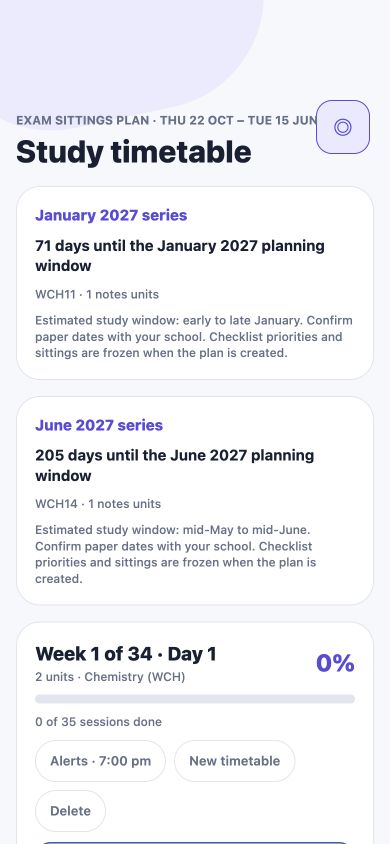
- Open Study timetable. Choose subjects, then select the units you want to revise. Locked units depend on your account access.
- Choose exam sittings or a shorter duration. Exam sittings come from Profile; January and June units keep separate deadlines. Choose when to start and review each countdown and the workload preview.
- Choose your study alert time and whether you want a weekly summary email. Save the timetable.
- Rate your checklist before creating the plan: Red and Amber priorities are captured when it is built. Later rating changes do not automatically rearrange an existing timetable.
Start with a small set of units if the daily workload is too large. Use New timetable when you need to rebuild your choices; review the new schedule before saving it.
6. Follow your plan each day
A timetable is useful when you act on it, check your learning and adjust your next step.
- Open today’s revision on Home or the Today section of Study timetable. Select a task title to open the relevant notes or activity.
- Work through the task and tick its completion box when finished. Untick it if you need to correct a mistake. Opening a note alone does not prove completion.
- Use Catch up for missed work and the week buttons to see upcoming sessions. Buffer days give you room to catch up or rest.
- At the weekly review, return to the unit checklist, practise recall and update your ratings. Session completion and learning confidence are different measures.
- Select Add to my calendar to subscribe through Google Calendar, Apple Calendar or Outlook, or download a one-off file. Subscriptions can refresh slowly; a downloaded file does not update automatically.
- Keep your calendar link private. Reset link if it has been shared by mistake. Change alert and weekly email preferences in the timetable’s settings.
If the work is too much, rebuild a smaller plan. Deleting a timetable removes its ticks and self-checks and empties its subscribed calendar; read the confirmation before continuing.
7. Complete an IAL Section A quiz
Multiple-choice practice checks your understanding and explains the alternatives after submission.
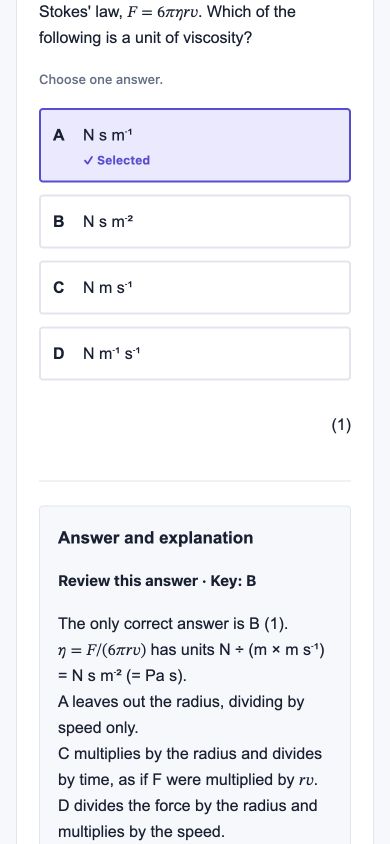
- Open a Chemistry, Physics or Economics IAL unit with Section A. Start its quiz on its own or inside the mixed practice paper.
- Choose one answer per question. Use Next, Previous or the question buttons to move around and review your choices.
- Answer every question, then select Submit quiz. The server marks your attempt and returns your score and explanations.
- Review why the correct option is right and why the other options are wrong. Revisit the relevant notes, then try again after a gap.
Section A is available in 74 IAL units. Sets with fewer than five questions show a score without a colour band. Other units use written practice and the checklist. Your quiz result stays separate from your self-rating.
8. Complete and self-mark structured questions
Write full answers and working on paper or in a separate document before opening the mark scheme.
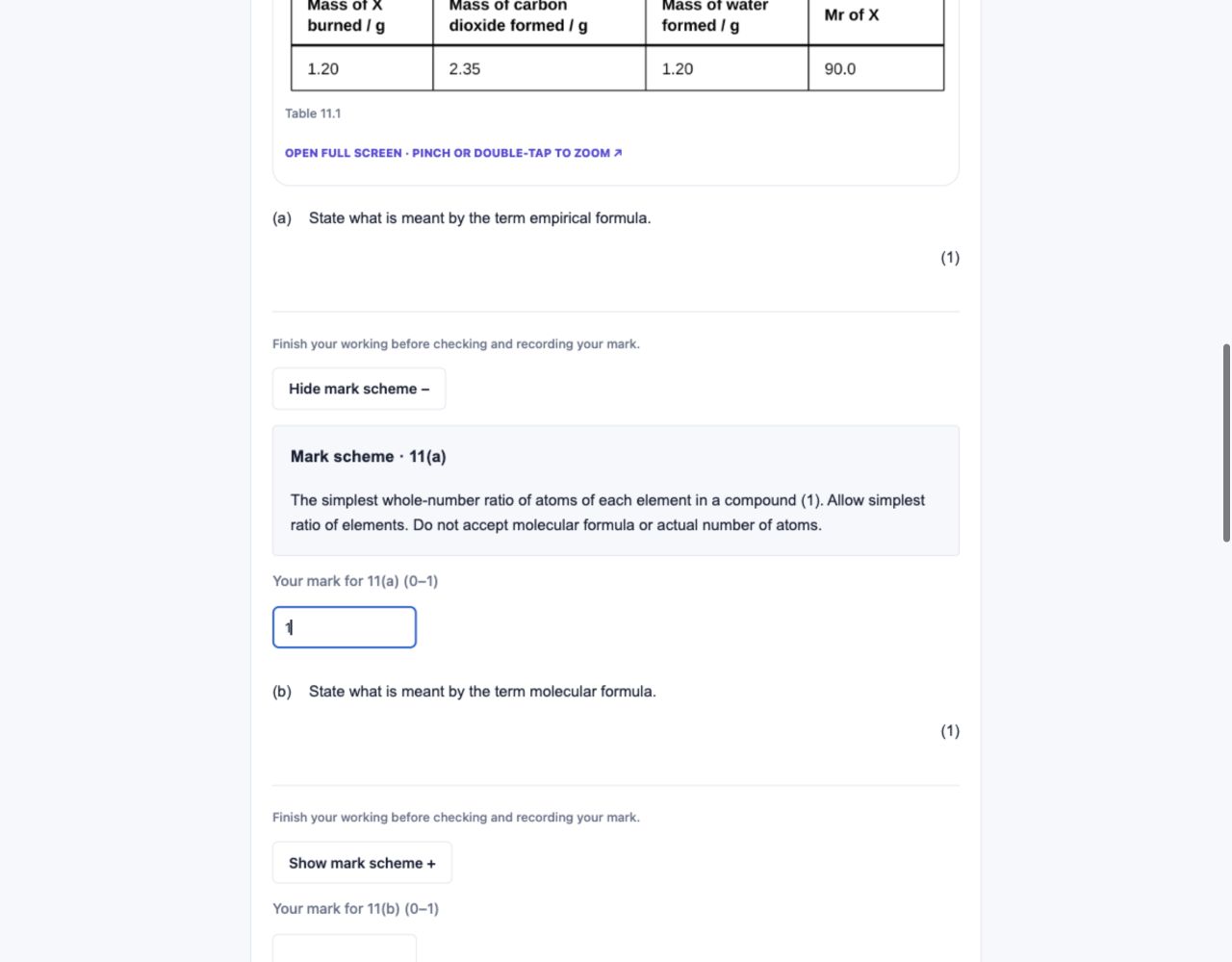
- Choose a structured practice set from the unit. Check Foundation / Higher, the science paper label or the IAL exam-unit code where shown.
- Read the question, figures and marks carefully. Attempt every part with full working, units and explanations where needed.
- Select Show mark scheme for a part only after attempting it. Compare your answer with the marking points, not just the final number.
- Enter the mark you earned for each part within the displayed range, then select Save my marks to record the attempt.
- Keep a note of the error you made, return to the matching notes and update your checklist based on what you can now do independently.
This is self-marking, not AI marking of your written answers. These are original Edexcel-style practice resources, not official past papers. DOCX downloads require an eligible plan.
9. Create resources and use your Library
Use Create for extra targeted practice after you know what you need to work on.
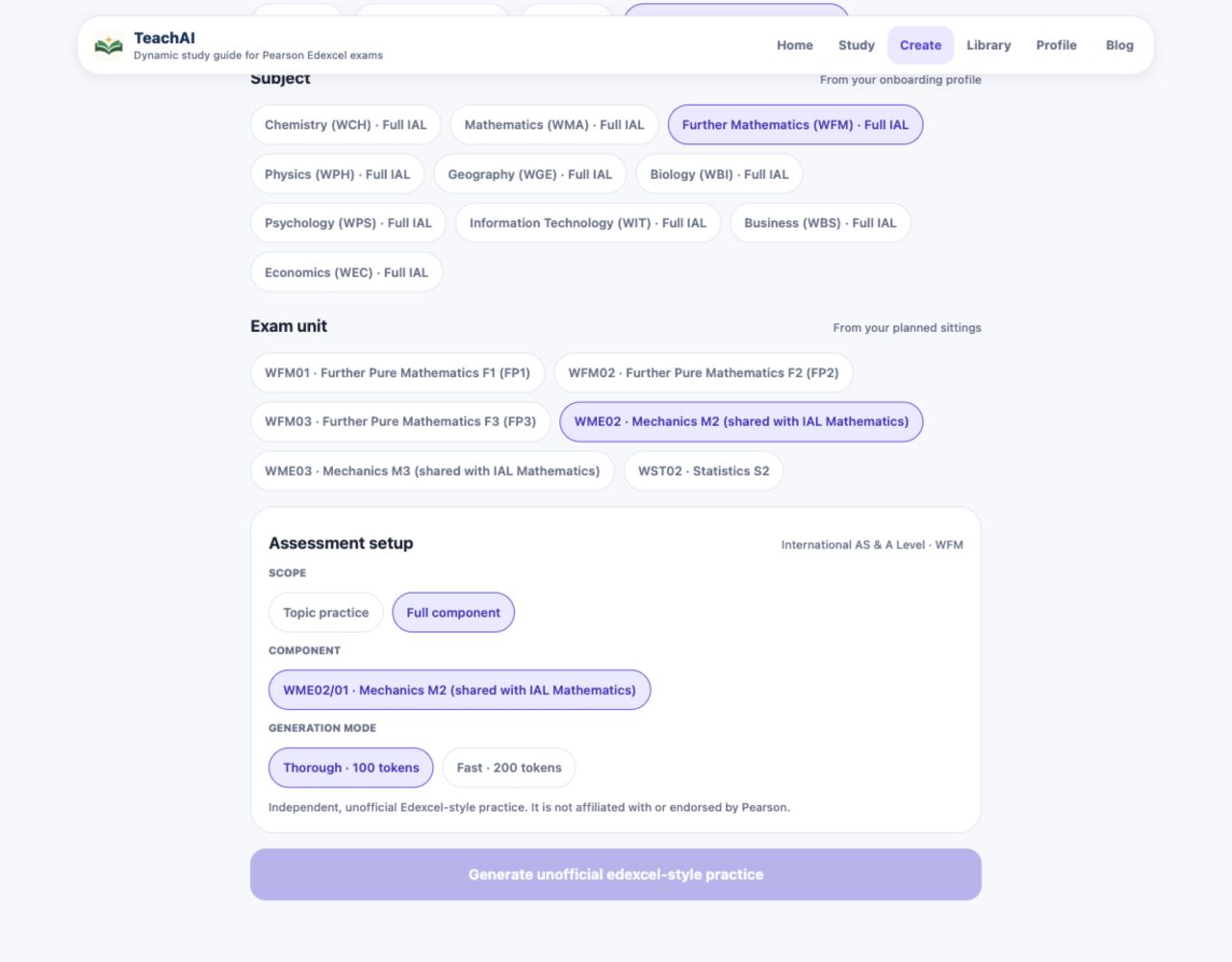
- Choose Worksheet, Knowledge organiser, Flashcards or Edexcel-style practice. Select your specification and planned IAL exam unit, then choose a topic or full component and review the paper options. If a course is unavailable, generation stays disabled and no tokens are charged.
- Check the token cost and your available balance before starting. Generating a resource uses tokens; opening the guide does not.
- Start generation once and follow the job’s progress. If it is still running, return to its status rather than repeatedly starting new jobs.
- Open completed resources from Library. Use the available viewer and download controls for that resource’s format.
- For flashcards, attempt recall before checking the answer. For an organiser, explain the connections. For a worksheet or practice paper, attempt first, then check the supplied answers. Check any questionable generated content with your notes or teacher.
Free access covers the first unit of each IGCSE specification or IAL exam unit. Other units, downloads and generation depend on your plan and token balance. Profile shows plan access, centre codes and referral options; redeem only codes you were given.
10. Connect to your teacher
You choose whether to share course progress with a teacher you know.
- Open your teacher’s invitation link, or enter the link or code in Teacher connections and select Preview invitation.
- Check the teacher’s name, school, verified account email, subject and level. If the course does not match, check your Profile or ask your teacher for the correct class.
- Read the sharing notice, enter the name you want your teacher to see and explicitly agree before joining.
- Your teacher can see your shared course’s scheduled/completed sessions, per-unit checklist counts and latest rating date, quiz scores and self-marked results, including matching existing progress.
- Your written answers, highlights, generated resources, email address and other subjects stay private. Return to Teacher connections to disconnect whenever you choose; your own study resources remain.
11. When something does not look right
Check the course, access and connection before repeating an action.
- Missing subject or wrong level: check your selected subjects, syllabus code and tier in Profile.
- No quiz: only selected IAL units have Section A. WIT practical units provide notes and checklists without written papers. Pearson booklets are not available yet.
- Locked unit or download: check your plan in Profile. A teacher connection alone does not unlock paid resources.
- A rating, highlight or timetable will not save: check the connection, wait for any saving indicator and read the error. Retry after reconnecting, then check the saved result.
- Missing class progress: confirm that you joined the correct class and agreed to share its matching syllabus and tier. A teacher may need to refresh the dashboard.
- Use Profile for account settings, sign-out and account deletion. Read deletion confirmations carefully. If a problem continues, give your teacher or support the page name, syllabus, unit and error text, without passwords or private invitation/calendar links.
12. Set up your teaching workspace
The student sections above also apply to teachers. Explore them before demonstrating a workflow to your class.
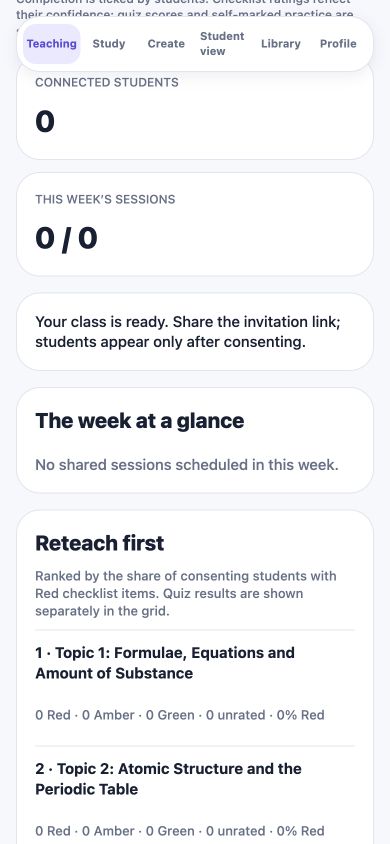
- Choose Teacher during setup. Enter your teacher name and school and confirm that you are 18 or older and an educator, then select Create teacher workspace.
- Use Teaching to return to your classes. Choose your teaching courses when prompted by Study or Create; each class also has its own course and level.
- Use Student view to demonstrate the student home and study tools. Activity here saves to your own account, not a learner’s account.
- Use Create and Library for your own teaching resources. Review generated questions and answers before sharing them with students. Check Profile for plan or centre-code access.
13. Create a class and link students
Students appear only after accepting the invitation and consenting to share.
- Select Create your first class or + New class. Enter a clear class title and choose the correct specification and IAL exam unit, or Mathematics A tier, then create it.
- Select the class and use Copy invitation link. Share that link with the intended students through your usual school channel.
- Ask students to sign in, preview the invitation, verify your identity and class details, and agree to share. Give them the student guide for the complete joining workflow.
- Check the connected-student count. If a student is missing, confirm their specification and selected exam unit or tier match and that they completed consent. Use Refresh after they join.
- Use Replace invitation if a link needs replacing. The old link stops working, while existing connections remain. Remove an individual student when appropriate; Close class disconnects everyone after confirmation.
A class invitation is different from a centre access code. Do not ask students to share passwords or sign in as them.
14. Read progress and identify support needs
Use the dashboard as a starting point for a conversation about learning.
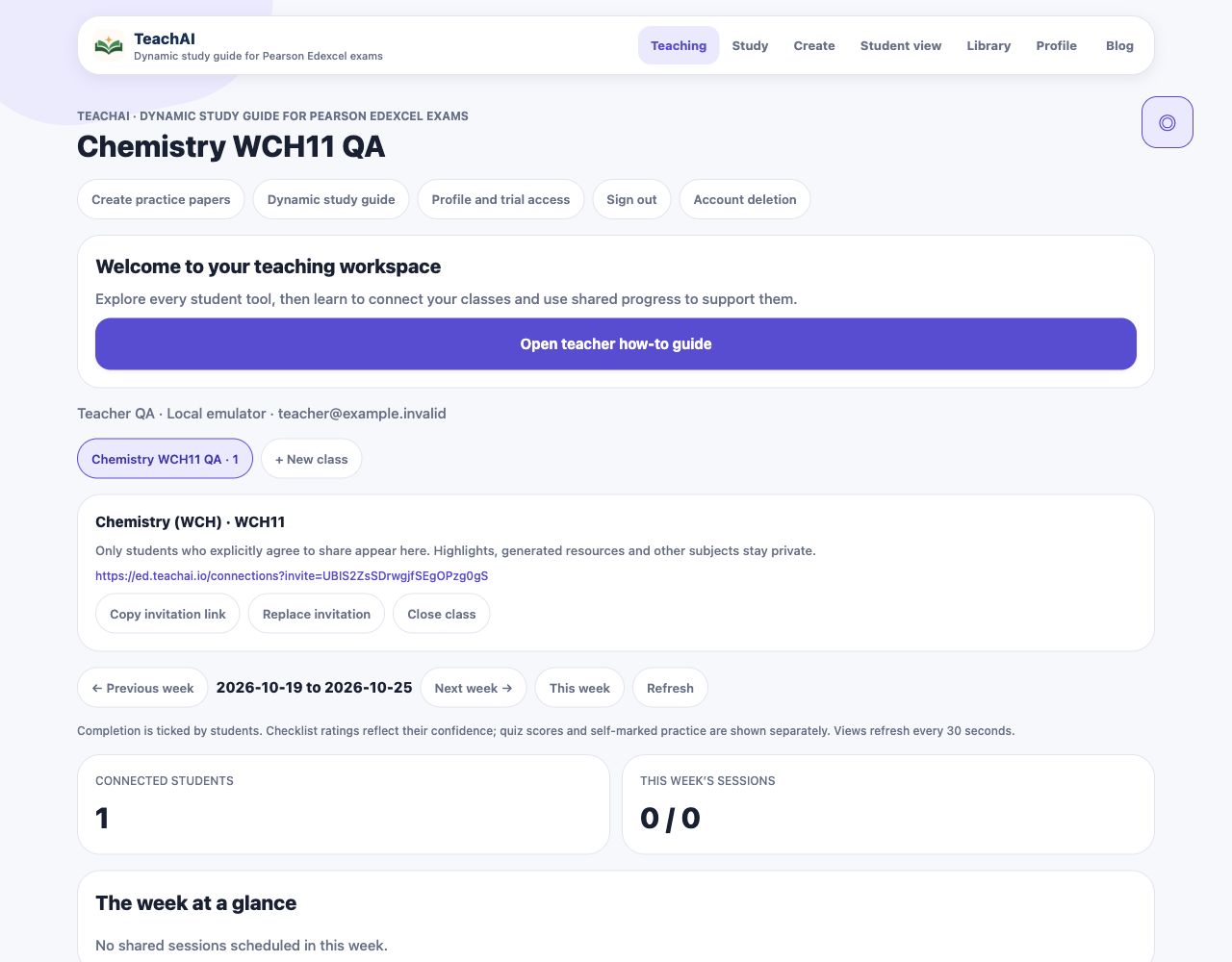
- Select a class, then This week, Previous week or Next week to review scheduled and completed sessions. Use Refresh for a current view; the dashboard also refreshes periodically.
- Read The week at a glance for completion patterns. Ticks are student-reported; no shared sessions or no cloud study plan is not proof that a learner has done no work.
- Use Reteach first to find units with the largest share of consenting students reporting Red checklist items.
- In Student breakdown, scroll across the grid to inspect units. Compare self-rated counts and coverage, quiz scores and self-marked practice separately; check the latest rating date.
- Treat Unrated as missing evidence. A Green self-rating with a low quiz score suggests checking understanding together; Red with a strong quiz score may call for reassurance and a fresh demonstration.
- You see only consented progress for the matching class specification, exam unit and content level. Written answers, highlights, generated resources and other subjects are not available through this dashboard.
Avoid treating confidence or completion as an exam grade. Ask the student to explain a method or complete a fresh question to understand what support is needed.
15. A practical weekly teaching routine
Connect the dashboard to a small, concrete teaching response.
- Before class: review Reteach first and choose one common difficulty. Open the matching note section and prepare a short explanation or example.
- During class: model how to read, recall, attempt a question and self-assess honestly. Show why changing from Green to Amber can be useful evidence.
- After practice: ask students to review quiz explanations or self-mark against the scheme, then update the relevant checklist items.
- At the weekly check-in: review shared timetable completion and discuss obstacles. Help students choose a realistic set of units for their own plan.
- Follow up next week: compare fresh practice evidence and recent ratings, and revisit the topic if the difficulty remains. Keep any detailed written feedback in your normal teaching workflow.